
How Does a Ticketing System Work? A Support Ticket's Journey, Step by Step
Follow one support request from the customer's email to a closed ticket: creation, priority, routing, SLA timers, internal notes, statuses and reporting.
By Suhep Team · · 8 min read
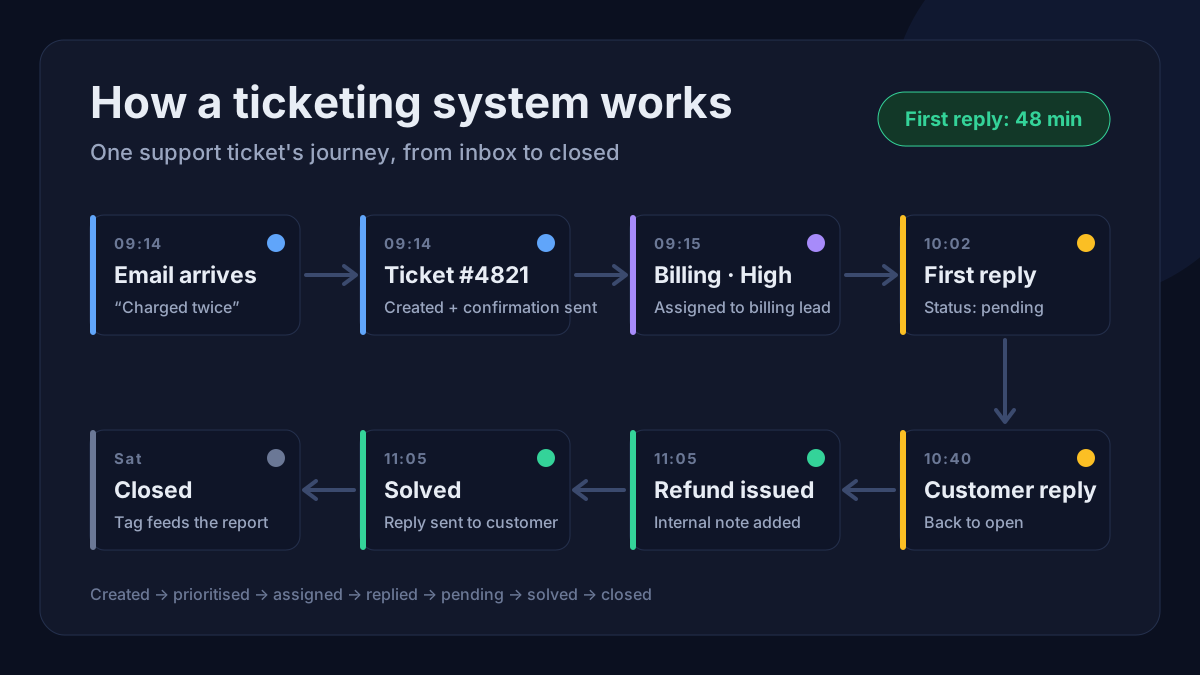
Most small businesses start support with a shared inbox. It works until the day two people answer the same customer with different answers, or a refund request sits unread for four days because everyone assumed someone else had it. That is usually when someone says "we need a ticketing system" without being quite sure what one does differently.
This guide follows one support request from the customer's first message to a closed ticket, and explains what the ticketing system does at each step.
The short answer
A ticketing system turns every customer request into a ticket: a record with its own ID, an owner, a status, a priority and a full history. Requests come in from email, web forms, chat and other channels; the system routes each ticket to the right person, starts any response-time clocks, keeps the conversation and internal notes in one thread, and moves the ticket through statuses such as open, pending and solved until it closes.
Step 1: A request arrives and becomes a ticket
The customer does not "open a ticket". They send an email, fill in a contact form or start a chat. The ticketing system catches that message and creates the ticket.
Zendesk's own guide to its email channel describes the classic flow: when a customer emails your support address, a ticket is created, the customer immediately gets an automated email saying the request was received, and the new ticket joins the queue, where routing rules either assign it to a group or agent or leave it waiting to be picked up.
At creation, a good system records:
- a unique ticket ID that both sides can quote
- the requester and the channel it came from
- the subject and the original message
- the exact creation time, where every response-time clock starts
The automated confirmation reassures the customer and gives them a reference number, but it is not a response: it should never stop your first response time clock.
Step 2: The ticket gets context
A raw message is hard to act on. Before or as it reaches a person, the ticket is labelled:
- Category or type, such as billing, technical problem or feature request
- Priority, from low to urgent
- Tags for anything you want to report on later
- Customer history, such as earlier tickets from the same person
Some of this happens automatically (a form field sets the category, a rule marks anything mentioning "payment failed" as high priority), and some is set by the first agent who reads it. Consistency is what matters. A priority scale everyone interprets the same way is worth more than a clever one; our guide to P1, P2, P3 and P4 priority levels has definitions you can copy. This is also the step where junk should be filtered out before it reaches a person's queue; see how to stop spam tickets.
Step 3: Routing and assignment
Next, the ticket needs an owner. There are three common patterns:
- Shared queue: tickets wait in one list and agents pick the next one. Simple, and fine for two or three people, as long as somebody owns the queue as a whole.
- Rule-based routing: billing tickets go to the person who handles billing, and urgent tickets go to a senior agent.
- Automatic distribution: the system spreads tickets across available agents.
Freshdesk's documentation on round-robin assignment shows how much thought goes into automatic distribution. It checks which agents in the group are available, skips anyone already at their ticket capacity, and gives the new ticket to the agent who has gone longest without receiving one.
Step 4: The clocks start
If you have service-level targets, this is where they bite. Most systems attach two timers to each ticket based on its priority: one for the first response and one for resolution. They can run in calendar time or only during your business hours, and good setups warn the owner before a target is missed rather than reporting the miss afterwards.
Across all tickets, those timers give you your SLA compliance rate.
Step 5: The conversation, in one thread
Now the actual support work happens. The agent replies from the ticket, and the customer receives the reply as a normal email or chat message. When the customer answers, the reply lands back on the same ticket rather than in someone's personal inbox. That threading is the single biggest difference from a shared mailbox.
Two features do a lot of quiet work here:
- Internal notes. Agents can leave context for colleagues ("spoke to finance, refund approved") on the ticket itself. The customer never sees these notes.
- Collision protection. Help Scout's collision detection, for example, shows when a teammate is viewing or replying to the same conversation, and it stops a reply from going out if someone else has added a reply or note, or the customer has written again, since you last looked.
Saved replies (macros) make common answers fast while they stay accurate; our macro audit checklist keeps them that way.
Step 6: Waiting on someone else
Statuses record who a ticket is waiting on. In Zendesk's standard set, for instance, Pending means the agent is waiting for information from the customer and switches back to Open automatically when the customer replies, while On-hold means waiting on someone other than the customer, such as another team or a supplier. On-hold is internal: the customer sees the ticket as open.
The names differ between tools, but the rule is the same: a waiting status should be true. A ticket marked pending when the next move is actually yours is a hidden breach. Our article on helpdesk ticket statuses goes through each status and its common misuses.
Step 7: Solved, closed and reopened
When the agent believes the problem is fixed, the ticket is marked solved (some tools say resolved). It is not gone yet. If the customer replies "that didn't work", the ticket reopens with its full history intact.
After a quiet period, the system closes the ticket for good. In Zendesk, solved tickets are closed automatically four days after they are solved by default, and a closed ticket cannot be reopened; a new message from the customer starts a follow-up ticket instead. Whatever your tool's timing, a closing window protects your statistics from tickets reopening months later, while still giving the customer time to check the fix.
Step 8: Everything becomes data
Because every step above has a timestamp and an owner, the ticketing system can answer questions a shared inbox cannot:
- How long do customers wait for a first reply, and how long until the problem is fixed?
- How many tickets are open right now, and how old is the oldest one?
- Which categories create the most work, and which ones keep reopening?
- Which questions could a help-centre article answer before they become tickets?
One ticket, start to finish
Here is a realistic billing ticket for a five-person team working 09:00 to 18:00:
- Tuesday 09:14: a customer emails "I was charged twice this month". Ticket #4821 is created and the customer gets an automatic confirmation quoting the number.
- 09:15: a rule spots the word "charged", sets the category to Billing and the priority to High, and assigns the ticket to the billing lead. A first-response timer of two business hours starts.
- 10:02: the billing lead replies, asking for the date and amount of both charges. Status: pending. First response time: 48 minutes.
- 10:40: the customer answers. The ticket switches back to open automatically.
- 11:05: the lead confirms the duplicate charge, issues a refund, adds an internal note ("duplicate caused by a retry after a timeout, reported to the developers") and replies to the customer. Status: solved.
- Saturday: no reply from the customer, so the system closes the ticket. The tag "duplicate-charge" feeds next month's report, which shows four similar tickets and gets the payment bug fixed.
Do you actually need a ticketing system?
A shared inbox is fine while one person handles low volume. You have outgrown it when:
- two people sometimes reply to the same customer
- you cannot say how long customers wait for an answer
- requests arrive through more than one channel
- you promise response times but cannot check whether you meet them
- work disappears when someone is on leave
What to set up first
You do not need every feature on day one. In order:
- Connect your main support email address and your website form, so every request becomes a ticket.
- Agree on four priority levels and three to six categories.
- Decide who owns unassigned tickets each day.
- Set first-response and resolution targets per priority, in business hours.
- Write saved replies for your ten most common questions.
- Look at the numbers weekly: response time, open backlog and the oldest open ticket.
How tickets work in Suhep
In Suhep, customers can raise a ticket from the support widget on your website, and each ticket carries a status (open, in progress, pending, resolved, closed or AI resolved) and a priority from low to urgent. Agents reply from the ticket, and team-only notes are never shown to the customer. Each SLA policy sets first-response and resolution targets in hours for a priority level, with a Business Hours Only switch and a warning threshold that defaults to 80% of the target. A ticket counts as AI resolved only when the assistant solved it without a person stepping in; everything else goes to your team.
The help articles on managing support tickets, replying to tickets and ticket priorities and SLA cover the details.
Sources
- Zendesk: How the email channel works
- Zendesk: About the ticket lifecycle and ticket statuses
- Freshdesk: Configure round-robin ticket routing
- Help Scout: Prevent duplicate replies with collision detection
Frequently asked questions
How does a ticketing system work in simple terms?
It turns each customer request from email, forms or chat into a ticket with an ID, an owner, a priority and a status. The system routes the ticket to an agent, keeps the whole conversation and internal notes in one thread, tracks response-time targets and closes the ticket once the problem is solved.
What is the difference between a ticketing system and a shared inbox?
A shared inbox stores messages. A ticketing system adds ownership, statuses, priorities, internal notes and timers to each request, so you can see who is handling it, what it is waiting on and how long the customer has been waiting.
What happens when a customer replies to a solved ticket?
In most systems the ticket reopens with its history intact. Once the ticket has been closed (by default four days after it was solved in Zendesk), a new message creates a follow-up ticket instead.